> For the complete documentation index, see [llms.txt](https://help.prequilt.com/llms.txt). Markdown versions of documentation pages are available by appending `.md` to page URLs; this page is available as [Markdown](https://help.prequilt.com/fabric-101/printed-fabric-swatches/import-printed-fabric-swatches.md).

# Import Printed Fabric Swatches

On the Fabric Dashboard

## <mark style="color:$primary;">Import Printed Fabric Swatches into PreQuilt</mark>

There are three different ways that you can import digital fabric swatches into your PreQuilt account.&#x20;

You can:

1. Upload digital fabric swatches that are already saved on your device or computer.
2. Use a URL address for a digital fabric swatch that is online.
3. Upload photographs of your fabric to create your own digital fabric swatch (typically from your smartphone) -- *COMING SOON*

***

### <mark style="color:blue;">01 | Upload from Your Device</mark>

Once you have digital fabric swatches saved on your device or computer, you can import and save them in your PreQuilt Fabric Dashboard. (Find Fabric Swatches [Help Guide here](/fabric-101/printed-fabric-swatches/find-printed-fabric-swatches.md)).

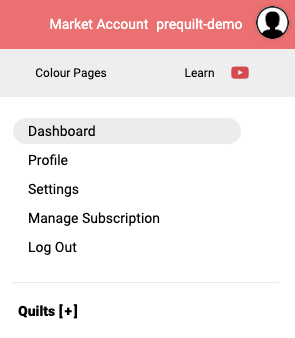
1. Go to the main Dashboard by clicking on your <mark style="color:blue;">**Avatar**</mark> and selecting <mark style="color:blue;">**Dashboard**</mark>.

   * <mark style="color:red;">**Alert:**</mark> Don't forget to <mark style="color:blue;">**Save**</mark> your quilt if you're working on one before exiting to the Dashboard.

   <div align="left"><figure><img src="https://667278489-files.gitbook.io/~/files/v0/b/gitbook-x-prod.appspot.com/o/spaces%2FPUFswdysHBJDPIJC9xe0%2Fuploads%2Fzp1LoVU57qdBQpfUFcxE%2F01%20dashboard.png?alt=media&amp;token=e012e82d-b391-4b31-a034-5b9ee4b8b6b4" alt=""><figcaption><p><em>Dropdown under Avatar</em></p></figcaption></figure></div>

2. On the main Dashboard, click on the <mark style="color:blue;">**FABRIC**</mark> tab.

   <figure><img src="https://667278489-files.gitbook.io/~/files/v0/b/gitbook-x-prod.appspot.com/o/spaces%2FPUFswdysHBJDPIJC9xe0%2Fuploads%2FtDkEBN3t4KR2D2lSbCRr%2FScreenshot%202026-09-14%20at%2011.14.27%E2%80%AFAM.png?alt=media&amp;token=7019109f-2a87-4779-ba29-db8505f42721" alt=""><figcaption><p><em>Middle tab is the <strong>Fabric Dashboard</strong></em></p></figcaption></figure>

3. Click on the <mark style="color:$primary;">**MY FABRIC subtab**</mark>.

   <figure><img src="https://667278489-files.gitbook.io/~/files/v0/b/gitbook-x-prod.appspot.com/o/spaces%2FPUFswdysHBJDPIJC9xe0%2Fuploads%2Fmcn1oDERtQBqq0C9spaD%2FScreenshot%202026-09-14%20at%2011.29.25%E2%80%AFAM.png?alt=media&amp;token=cff00de0-d3fa-4e48-8530-62b339bb3d30" alt=""><figcaption></figcaption></figure>

4. Click on <mark style="color:blue;">**+ Upload from Computer button**</mark> on the left side.

   <div align="left"><figure><img src="https://667278489-files.gitbook.io/~/files/v0/b/gitbook-x-prod.appspot.com/o/spaces%2FPUFswdysHBJDPIJC9xe0%2Fuploads%2FTpsTNjoWoyb12SipUeww%2FScreenshot%202026-09-14%20at%2011.30.48%E2%80%AFAM.png?alt=media&amp;token=ea958d32-cf3f-44e2-acfa-2506ff662aac" alt=""><figcaption></figcaption></figure></div>

5. Your computer's file system will pop-up. <mark style="color:blue;">**Select the image(s)**</mark> you want to use and click on <mark style="color:blue;">**Open**</mark>.

   <div align="left"><figure><img src="https://667278489-files.gitbook.io/~/files/v0/b/gitbook-x-prod.appspot.com/o/spaces%2FPUFswdysHBJDPIJC9xe0%2Fuploads%2FnKl3J7x5QIcMzVMVIfvA%2FScreenshot%202026-09-14%20at%2011.37.28%E2%80%AFAM.png?alt=media&amp;token=edccb02e-9c59-4c9d-9f99-b4ef812a0800" alt="" width="535"><figcaption><p><em>Select the images from your computer</em></p></figcaption></figure></div>

6. Your selected fabric swatches are now loaded into PreQuilt.&#x20;

   * <mark style="color:$primary;">**NOTE:**</mark> You will need to set the swatch width before using them in your quilts. Learn how to set the width in [*Edit Digital Fabric Swatches Help Guide*](/fabric-101/printed-fabric-swatches/edit-printed-fabric-swatches.md).

   <figure><img src="https://667278489-files.gitbook.io/~/files/v0/b/gitbook-x-prod.appspot.com/o/spaces%2FPUFswdysHBJDPIJC9xe0%2Fuploads%2FpXAtqoPU95vKkLUn9bDH%2FScreenshot%202026-09-14%20at%2011.38.41%E2%80%AFAM.png?alt=media&amp;token=8c6587d3-9aac-4ab6-951b-2ce811c083ed" alt=""><figcaption></figcaption></figure>

***

### <mark style="color:blue;">02 | Import using a URL address</mark>

Using this method, you do not need to save the digital fabric swatch to your computer before importing it into your Fabric Dashboard. PreQuilt will use the URL address and save the image into your account.

1. <mark style="color:blue;">**Find**</mark> your fabric online ([*Find Printed Fabric Swatches Help Guide*](/fabric-101/printed-fabric-swatches/find-printed-fabric-swatches.md)). In this example, I’ll be adding Chubby Cheeks in Clover from Tula Pink.

   <figure><img src="https://667278489-files.gitbook.io/~/files/v0/b/gitbook-x-prod.appspot.com/o/spaces%2FPUFswdysHBJDPIJC9xe0%2Fuploads%2FLkoY6lAJUEsBHEOMWXCY%2FScreenshot%202026-09-14%20at%2011.47.50%E2%80%AFAM.png?alt=media&amp;token=f3c1e5af-2c88-4b95-953b-4727737bcdca" alt=""><figcaption><p><em>Example of fabric swatch found online at Free Spirit website</em></p></figcaption></figure>

2. On the fabric image, right click and select <mark style="color:blue;">**Copy image address**</mark>.

   <div align="left"><figure><img src="https://667278489-files.gitbook.io/~/files/v0/b/gitbook-x-prod.appspot.com/o/spaces%2FPUFswdysHBJDPIJC9xe0%2Fuploads%2Ff0Qr2WP8FHzV1SXYd6pu%2F02%20save%20image%20address.png?alt=media&amp;token=ab353f8c-9e0a-4cd2-b129-655aac140335" alt="" width="367"><figcaption><p><em>Select <strong>Copy Image Address</strong></em></p></figcaption></figure></div>

3. Log into your PreQuilt account. Click on the <mark style="color:blue;">**Fabric**</mark> tab on the top of your dashboard.

   <figure><img src="https://667278489-files.gitbook.io/~/files/v0/b/gitbook-x-prod.appspot.com/o/spaces%2FPUFswdysHBJDPIJC9xe0%2Fuploads%2FtDkEBN3t4KR2D2lSbCRr%2FScreenshot%202026-09-14%20at%2011.14.27%E2%80%AFAM.png?alt=media&amp;token=7019109f-2a87-4779-ba29-db8505f42721" alt=""><figcaption><p><em><strong>Fabric Dashboard</strong> tab</em></p></figcaption></figure>

4. Click on the <mark style="color:$primary;">**MY FABRIC subtab**</mark>.

   <figure><img src="https://667278489-files.gitbook.io/~/files/v0/b/gitbook-x-prod.appspot.com/o/spaces%2FPUFswdysHBJDPIJC9xe0%2Fuploads%2FxbUt0hI9qf40NwspJBot%2FScreenshot%202026-09-14%20at%2011.29.25%E2%80%AFAM.png?alt=media&amp;token=86b3e6da-3f4c-41da-9e01-8fb60c999a82" alt=""><figcaption></figcaption></figure>

5. Click on <mark style="color:blue;">**+ Upload from URL button**</mark> on the left side.

   <div align="left"><figure><img src="https://667278489-files.gitbook.io/~/files/v0/b/gitbook-x-prod.appspot.com/o/spaces%2FPUFswdysHBJDPIJC9xe0%2Fuploads%2FTpsTNjoWoyb12SipUeww%2FScreenshot%202026-09-14%20at%2011.30.48%E2%80%AFAM.png?alt=media&amp;token=ea958d32-cf3f-44e2-acfa-2506ff662aac" alt=""><figcaption></figcaption></figure></div>

6. In the text box, <mark style="color:$primary;">**enter**</mark> your image’s <mark style="color:blue;">**URL address**</mark> (that you copied earlier in step 2). Then click on the <mark style="color:$primary;">**Upload button**</mark>.

   <div align="left"><figure><img src="https://667278489-files.gitbook.io/~/files/v0/b/gitbook-x-prod.appspot.com/o/spaces%2FPUFswdysHBJDPIJC9xe0%2Fuploads%2Fve2y6L5JCJULNMs21MkR%2FScreenshot%202026-09-14%20at%2011.47.00%E2%80%AFAM.png?alt=media&amp;token=8eee5301-4481-412f-b6db-0355618f5918" alt=""><figcaption></figcaption></figure></div>

7. This digital fabric swatch has now been added to your fabric stash.

   * <mark style="color:$primary;">**NOTE:**</mark> You will need to set the swatch width before using them in your quilts. Learn how to set the width in [*Edit Digital Fabric Swatches Help Guide*](/fabric-101/printed-fabric-swatches/edit-printed-fabric-swatches.md).

   <div align="left"><figure><img src="https://667278489-files.gitbook.io/~/files/v0/b/gitbook-x-prod.appspot.com/o/spaces%2FPUFswdysHBJDPIJC9xe0%2Fuploads%2FSqnwKM2tdS0sGVfqAq6r%2FScreenshot%202026-09-14%20at%2011.49.34%E2%80%AFAM.png?alt=media&amp;token=a8fb3ce9-b8a1-4c1b-b13c-bdbf600e9165" alt=""><figcaption></figcaption></figure></div>

***

### <mark style="color:$primary;">03 | Upload Photographs of Your Fabric</mark>

{% embed url="<https://www.youtube.com/watch?v=jEZKY6IKrR8>" %}

*U.2026.09.14*