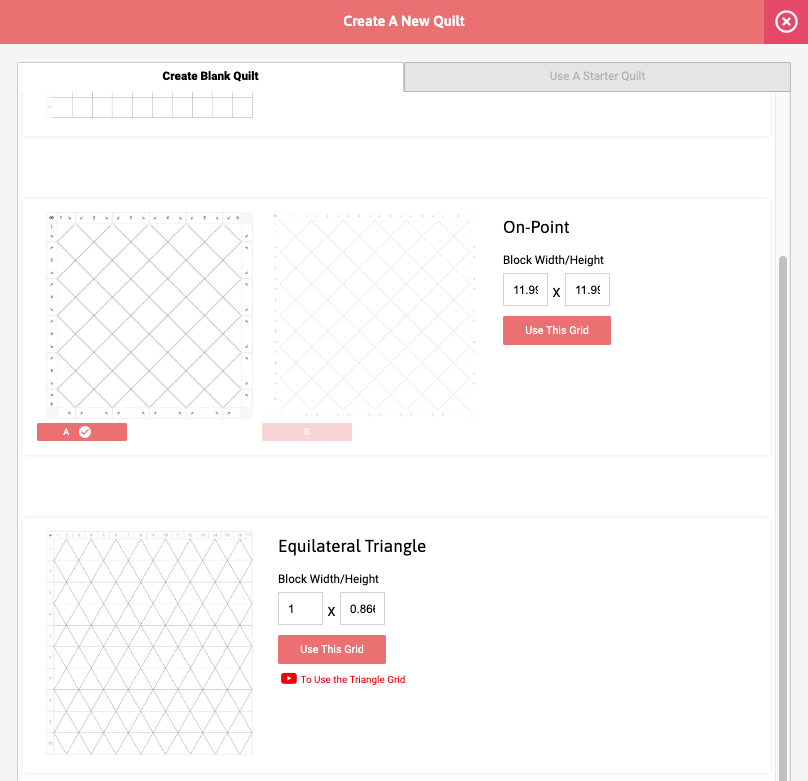
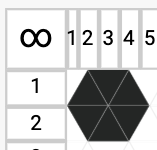
# Hexagons (a Hack)

<figure><img src="https://667278489-files.gitbook.io/~/files/v0/b/gitbook-x-prod.appspot.com/o/spaces%2FPUFswdysHBJDPIJC9xe0%2Fuploads%2FIU2nLUxcAT1LfbBRsAQW%2Fimage.png?alt=media&#x26;token=d1712800-0b1e-4095-9ae4-dd3a65cd9902" alt=""><figcaption><p>Using the Equilateral Triangle grid to create visual hexagons.</p></figcaption></figure>

## <mark style="color:blue;">Creating Hexagons (a Hack)</mark>

As of June 2023, we do not yet have hexagons as one of our quilt grid layouts. But there is a bit of a hack or workaround that we could recommend if you're interested - use the Equilateral Triangle grid!

***

## <mark style="color:blue;">01 | Create the Hexagon Grid</mark>

First we'll need to set up a quilt grid that can create hacked hexagons.

1. On the QUILTS dashboard, click on the <mark style="color:blue;">**Create Quilt**</mark> button.

   <div align="left"><figure><img src="https://667278489-files.gitbook.io/~/files/v0/b/gitbook-x-prod.appspot.com/o/spaces%2FPUFswdysHBJDPIJC9xe0%2Fuploads%2Fz2YqGomBao3hcNdPlEm8%2FScreen%20Shot%202023-06-12%20at%204.53.15%20PM.png?alt=media&#x26;token=593473de-7cdc-4141-a424-1bc5d41eab19" alt=""><figcaption></figcaption></figure></div>
2. In the pop-up window, scroll to the bottom for the Equilateral Triangle grid and <mark style="color:blue;">**enter the dimensions**</mark> of one side of your hexagon as the block width. In this example, I'm setting the width to 1".

   * **NOTE**: The other dimension will automatically set in reference to the first number.

   <div align="left"><figure><img src="https://667278489-files.gitbook.io/~/files/v0/b/gitbook-x-prod.appspot.com/o/spaces%2FPUFswdysHBJDPIJC9xe0%2Fuploads%2FBVSQ0yTi1lFhguxqDtJj%2FScreen%20Shot%202023-06-12%20at%204.52.57%20PM.png?alt=media&#x26;token=fce022ae-dfe8-45cb-b446-6fa126208b06" alt="" width="563"><figcaption></figcaption></figure></div>
3. Click on the <mark style="color:blue;">**Use This Grid**</mark> button.

   <div align="left"><figure><img src="https://667278489-files.gitbook.io/~/files/v0/b/gitbook-x-prod.appspot.com/o/spaces%2FPUFswdysHBJDPIJC9xe0%2Fuploads%2FgV3qDD5OsnKWsrgmZwIW%2FScreen%20Shot%202023-06-12%20at%205.05.49%20PM.png?alt=media&#x26;token=6dcb79cc-47ff-4ced-ba35-6dc5e4ea96a2" alt=""><figcaption></figcaption></figure></div>
4. On the left hand control panel, click on the <mark style="color:blue;">**GRID tab**</mark>.

   <div align="left"><figure><img src="https://667278489-files.gitbook.io/~/files/v0/b/gitbook-x-prod.appspot.com/o/spaces%2FPUFswdysHBJDPIJC9xe0%2Fuploads%2F5TxnojLNx9HScOJHSbit%2FScreen%20Shot%202023-06-12%20at%205.07.08%20PM.png?alt=media&#x26;token=8615e33d-d09e-4410-a286-9a21763fb5fa" alt=""><figcaption></figcaption></figure></div>
5. Enter the <mark style="color:blue;">**number of columns and rows**</mark> you'd like to have for your quilt.

   * **NOTE**: You can always change these at a later time.
   * **NOTE**: As you update the # of columns and rows, the overall quilt dimensions will be updated.

   <div align="left"><figure><img src="https://667278489-files.gitbook.io/~/files/v0/b/gitbook-x-prod.appspot.com/o/spaces%2FPUFswdysHBJDPIJC9xe0%2Fuploads%2F3QnlCMBMJfFRh4ayU5V1%2FScreen%20Shot%202023-06-12%20at%205.17.42%20PM.png?alt=media&#x26;token=48a00b33-3403-4db0-99c1-b04109abaa1b" alt=""><figcaption></figcaption></figure></div>

***

## <mark style="color:blue;">02 | Hack a Hexagon</mark>

Now that we've created the Equilateral Triangle grid, we can visually create a hacked hexagon.

1. On the quilt grid, <mark style="color:blue;">**click on 6 equilateral triangles cell blocks**</mark> to create a hexagon.

   <div align="left"><figure><img src="https://667278489-files.gitbook.io/~/files/v0/b/gitbook-x-prod.appspot.com/o/spaces%2FPUFswdysHBJDPIJC9xe0%2Fuploads%2F0VHNfpAn2YHPM4RMlglz%2FScreen%20Shot%202023-06-12%20at%205.19.06%20PM.png?alt=media&#x26;token=18863d27-d9f3-4d2e-8a3d-604ad112002e" alt=""><figcaption></figcaption></figure></div>
2. Click on the <mark style="color:blue;">**BLOCKS**</mark> <mark style="color:blue;">**tab**</mark>.

   <div align="left"><figure><img src="https://667278489-files.gitbook.io/~/files/v0/b/gitbook-x-prod.appspot.com/o/spaces%2FPUFswdysHBJDPIJC9xe0%2Fuploads%2Ftq62kLdgyjXHvb9GMaXg%2FScreen%20Shot%202023-06-12%20at%205.20.53%20PM.png?alt=media&#x26;token=98e9beec-1e8d-4f4e-bc6c-2064ca8a7422" alt=""><figcaption></figcaption></figure></div>
3. Then click on the <mark style="color:blue;">**+ sign**</mark> next to 1 Patch Blocks.

   <div align="left"><figure><img src="https://667278489-files.gitbook.io/~/files/v0/b/gitbook-x-prod.appspot.com/o/spaces%2FPUFswdysHBJDPIJC9xe0%2Fuploads%2FpXk7HlCeJWzmapDRzFPX%2FScreen%20Shot%202023-06-12%20at%205.51.29%20PM.png?alt=media&#x26;token=6423418f-c197-406c-9bea-4f4438614abd" alt=""><figcaption></figcaption></figure></div>
4. Click on the <mark style="color:blue;">**Add to Quilt**</mark> button next to the color tag you'd like to use for that hexagon.

   <div align="left"><figure><img src="https://667278489-files.gitbook.io/~/files/v0/b/gitbook-x-prod.appspot.com/o/spaces%2FPUFswdysHBJDPIJC9xe0%2Fuploads%2FHuIsJdgAtmYo2BhvyHZX%2FScreen%20Shot%202023-06-12%20at%205.21.57%20PM.png?alt=media&#x26;token=1ddafa9f-fcdb-48df-9463-2c05d63f8a44" alt=""><figcaption></figcaption></figure></div>
5. After deselecting (clicking outside the quilt grid), you will now see a hacked hexagon.

   <div align="left"><figure><img src="https://667278489-files.gitbook.io/~/files/v0/b/gitbook-x-prod.appspot.com/o/spaces%2FPUFswdysHBJDPIJC9xe0%2Fuploads%2FiKqewM4tO6rUR9TJYm8V%2FScreen%20Shot%202023-06-12%20at%205.22.44%20PM.png?alt=media&#x26;token=c1127d6a-b8a0-41b0-9144-6e62f1023307" alt=""><figcaption></figcaption></figure></div>
6. <mark style="color:blue;">**Repeat steps 02.1-4**</mark>, to create more hacked hexagons.

   <div align="left"><figure><img src="https://667278489-files.gitbook.io/~/files/v0/b/gitbook-x-prod.appspot.com/o/spaces%2FPUFswdysHBJDPIJC9xe0%2Fuploads%2FAj8Pwbo56ttCudlyvRcu%2FScreen%20Shot%202023-06-12%20at%205.24.09%20PM.png?alt=media&#x26;token=669153fb-3087-4021-97dd-1f7a023ef0e2" alt=""><figcaption></figcaption></figure></div>

***

## <mark style="color:blue;">03 | Additional Tips</mark>

### <mark style="color:blue;">a | Adding More 1 Patch Blocks</mark>

If you need to add more color options, click on the <mark style="color:blue;">**Make a 1 Patch Block**</mark> button. An additional 1 Patch Block will be added.&#x20;

* **NOTE**: This action will also create a new corresponding Color Tag.

<div align="left"><figure><img src="https://667278489-files.gitbook.io/~/files/v0/b/gitbook-x-prod.appspot.com/o/spaces%2FPUFswdysHBJDPIJC9xe0%2Fuploads%2FExyISspZrNOcCJfESDl0%2FScreen%20Shot%202023-06-12%20at%205.26.15%20PM.png?alt=media&#x26;token=5ffb2b81-bb86-40da-9335-4c9567f01541" alt="" width="256"><figcaption></figcaption></figure></div>

### <mark style="color:blue;">b | Edit the Solid Color of a 1 Patch Block</mark>

1. Click on the <mark style="color:blue;">**Edit Block**</mark> button next to the color tag you'd like to change.

   <div align="left"><figure><img src="https://667278489-files.gitbook.io/~/files/v0/b/gitbook-x-prod.appspot.com/o/spaces%2FPUFswdysHBJDPIJC9xe0%2Fuploads%2Ff2nxOsTa7paF0Ay5Y2QN%2FScreen%20Shot%202023-06-12%20at%205.27.29%20PM.png?alt=media&#x26;token=bb068033-0c4e-408f-846c-4183a4fb4b96" alt=""><figcaption></figcaption></figure></div>
2. Click on the <mark style="color:blue;">**color swatch**</mark> for the new color you'd like to use.

   * **NOTE**: This action will also change the color tag AND it will update all blocks that uses that color tag as well.

   <div align="left"><figure><img src="https://667278489-files.gitbook.io/~/files/v0/b/gitbook-x-prod.appspot.com/o/spaces%2FPUFswdysHBJDPIJC9xe0%2Fuploads%2FTZFmtWzFUyZTg3bCrt6q%2FScreen%20Shot%202023-06-12%20at%205.32.40%20PM.png?alt=media&#x26;token=2d90d75d-1247-43c5-8e23-7d8092301195" alt="" width="269"><figcaption></figcaption></figure></div>

   <div align="left"><figure><img src="https://667278489-files.gitbook.io/~/files/v0/b/gitbook-x-prod.appspot.com/o/spaces%2FPUFswdysHBJDPIJC9xe0%2Fuploads%2FygH6TYThFTtXdqa9tXRe%2FScreen%20Shot%202023-06-12%20at%205.24.09%20PM.png?alt=media&#x26;token=3e1856f8-6e1a-468b-9430-9d07221422a3" alt=""><figcaption><p><em>Before color change</em></p></figcaption></figure> <figure><img src="https://667278489-files.gitbook.io/~/files/v0/b/gitbook-x-prod.appspot.com/o/spaces%2FPUFswdysHBJDPIJC9xe0%2Fuploads%2Fg4LbFi8ozhJL0DNXPnjA%2FScreen%20Shot%202023-06-12%20at%205.35.03%20PM.png?alt=media&#x26;token=1294f0a2-9667-4803-a258-bd435d39a89f" alt=""><figcaption><p><em>After color change</em></p></figcaption></figure></div>

### <mark style="color:blue;">c | Using Printed Fabric on a 1 Patch Block</mark>

1. Click on the <mark style="color:blue;">**Edit Block**</mark> button next to the color tag you'd like to change.

   <div align="left"><figure><img src="https://667278489-files.gitbook.io/~/files/v0/b/gitbook-x-prod.appspot.com/o/spaces%2FPUFswdysHBJDPIJC9xe0%2Fuploads%2FhIScBj4LQARURDSwQwwu%2FScreen%20Shot%202023-06-12%20at%205.34.52%20PM.png?alt=media&#x26;token=260a296b-abc9-4492-8e42-300d656926ed" alt=""><figcaption></figcaption></figure></div>
2. Click on the <mark style="color:blue;">**PRINTS**</mark> tab.

   <div align="left"><figure><img src="https://667278489-files.gitbook.io/~/files/v0/b/gitbook-x-prod.appspot.com/o/spaces%2FPUFswdysHBJDPIJC9xe0%2Fuploads%2FaioeNqsYQIRHaXeIwiyZ%2FScreen%20Shot%202023-06-12%20at%205.35.19%20PM.png?alt=media&#x26;token=82117b48-ca2a-4a2a-b996-c8aa2456e126" alt="" width="269"><figcaption></figcaption></figure></div>
3. Click on the <mark style="color:blue;">**Select**</mark> button for the printed fabric you'd like to use.

   <div align="left"><figure><img src="https://667278489-files.gitbook.io/~/files/v0/b/gitbook-x-prod.appspot.com/o/spaces%2FPUFswdysHBJDPIJC9xe0%2Fuploads%2FYLw0fPzAxzqtxlM4rvJV%2FScreen%20Shot%202023-06-12%20at%205.42.14%20PM.png?alt=media&#x26;token=74b848df-44e8-43ff-8e33-a9cb1daffe1d" alt=""><figcaption></figcaption></figure></div>
4. Scale the fabric to <mark style="color:blue;">**400**</mark> so that it is at the accurate scale for the block size.

   <div align="left"><figure><img src="https://667278489-files.gitbook.io/~/files/v0/b/gitbook-x-prod.appspot.com/o/spaces%2FPUFswdysHBJDPIJC9xe0%2Fuploads%2FMS6s43BIWq3AKlFMcYGE%2FScreen%20Shot%202023-06-12%20at%205.36.43%20PM.png?alt=media&#x26;token=0750eb41-9fee-48a5-abda-403027053e19" alt=""><figcaption></figcaption></figure></div>
5. Click on the <mark style="color:blue;">**x button**</mark> (<img src="https://667278489-files.gitbook.io/~/files/v0/b/gitbook-x-prod.appspot.com/o/spaces%2FPUFswdysHBJDPIJC9xe0%2Fuploads%2FqPkKAxtfeFNvJOLaj7pP%2FScreen%20Shot%202023-06-12%20at%205.38.26%20PM.png?alt=media&#x26;token=d80f88e7-adbb-45f0-9504-6ef29605d900" alt="" data-size="line">) to close the panel.

   <div align="left"><figure><img src="https://667278489-files.gitbook.io/~/files/v0/b/gitbook-x-prod.appspot.com/o/spaces%2FPUFswdysHBJDPIJC9xe0%2Fuploads%2FimNvfiGkT40JMqbYVQEI%2FScreen%20Shot%202023-06-12%20at%205.38.18%20PM.png?alt=media&#x26;token=bac05807-f0df-40f2-a4ce-fa7c0353f326" alt="" width="269"><figcaption></figcaption></figure></div>
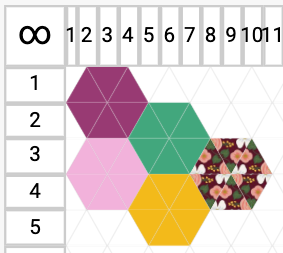
6. Now you'll see the fabric being used on the hexagon instead of a solid.

   1. **NOTE**: Since this is a hacked hexagon, you'll see a division between each of the triangles, instead of one continuous, solid hexagon shape.
   <div align="left"><figure><img src="https://667278489-files.gitbook.io/~/files/v0/b/gitbook-x-prod.appspot.com/o/spaces%2FPUFswdysHBJDPIJC9xe0%2Fuploads%2FYW35vX5zcOAbU6LgWgJH%2FScreen%20Shot%202023-06-12%20at%205.39.58%20PM.png?alt=media&#x26;token=d501cad4-37f6-467b-8866-12dce73bd25d" alt=""><figcaption></figcaption></figure></div>