> For the complete documentation index, see [llms.txt](https://help.prequilt.com/llms.txt). Markdown versions of documentation pages are available by appending `.md` to page URLs; this page is available as [Markdown](https://help.prequilt.com/prequilt-101/build-a-block-unit-for-the-fabric-calculator/curved-units/drunkards-path/traditional-drunkards-path.md).

# Traditional Drunkard's Path

<figure><img src="/files/qhN1I6L2OuEliuIbJ88p" alt="" width="375"><figcaption><p>Drunkard's Path Block Unit</p></figcaption></figure>

## <mark style="color:blue;">Traditional Drunkard's Path Block Unit in PreQuilt</mark>

There are two curved pieces that make up both versions of the **Drunkard's Path** blocks: a convex piece and a concave piece.&#x20;

Once pieced, the convex piece of the **traditional Drunkard's Path** block unit does not fully overlap the concave piece on the squre sides of the block or fill the square bounding box of the block.&#x20;

<div align="left"><figure><img src="/files/TcYe709YgxLRgiiTsk2M" alt="" width="375"><figcaption><p>Traditional Drunkard's Path block unit</p></figcaption></figure></div>

Since the idea behind this series is to build a block unit (not an entire block that is just a Drunkard's Path), I'm going to create a 12" finished block that has a few Drunkard's Path block units.

&#x20; &#x20;

***

### YouTube Video

*Coming soon...*

***

### Help Guide

1. Click on the <mark style="color:blue;">**BLOCKS tab**</mark> on the left side control panel.

   <div align="left"><figure><img src="/files/68Sy8IGIv0pf3slIgZAs" alt=""><figcaption></figcaption></figure></div>
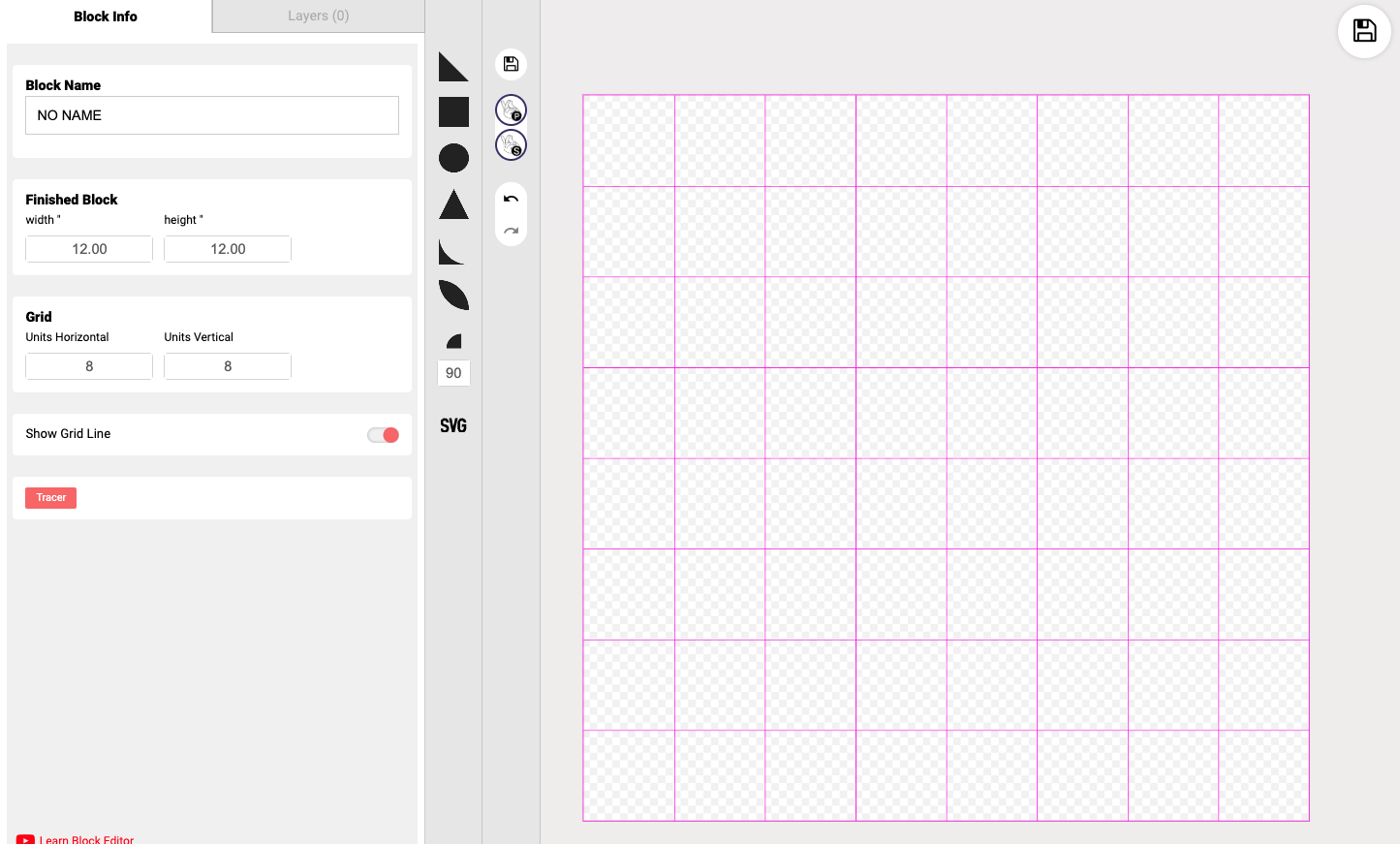
2. Click on the <mark style="color:blue;">**Make Custom Block**</mark> button.

   <div align="left"><figure><img src="/files/m996ukpqAnSaJrChXBS5" alt=""><figcaption></figcaption></figure></div>
3. The **Block Editor panel** will slide out and overtake your screen. My block is set to 12" x 12" finished, but it doesn't matter, the next steps will work for all sized blocks.
4. Set your grid guidelines by changing the number for the horizontal and vertical units.

   * I'll set my gridlines to 8 horizontal and 8 vertical units. I want my convex piece of my Drunkard's Path block units to be 3/4 of the height and width of the concave piece.

   <div align="left"><figure><img src="/files/aZ84G58Ueplhk2D1r3d1" alt=""><figcaption></figcaption></figure></div>

   <figure><img src="/files/hEpOGl7dUXEu3tynGOmz" alt=""><figcaption></figcaption></figure>
5. Click on the <mark style="color:blue;">**square shape**</mark> (<img src="/files/hy2ZsHmPdS74SBFprTv2" alt="" data-size="line">) from the central control panel. It will be our background fabric behind the circle.

   <figure><img src="/files/cx7GVqU2anRQGcoREEK1" alt=""><figcaption></figcaption></figure>
6. <mark style="color:blue;">**Move**</mark> the new square block unit so it is in the top left corner of the quilt block.

   <div><figure><img src="/files/wvlrqvRt0ftWRFuoxusA" alt=""><figcaption></figcaption></figure> <figure><img src="/files/CtiaQk2uY5iwVIMqEp39" alt=""><figcaption></figcaption></figure></div>
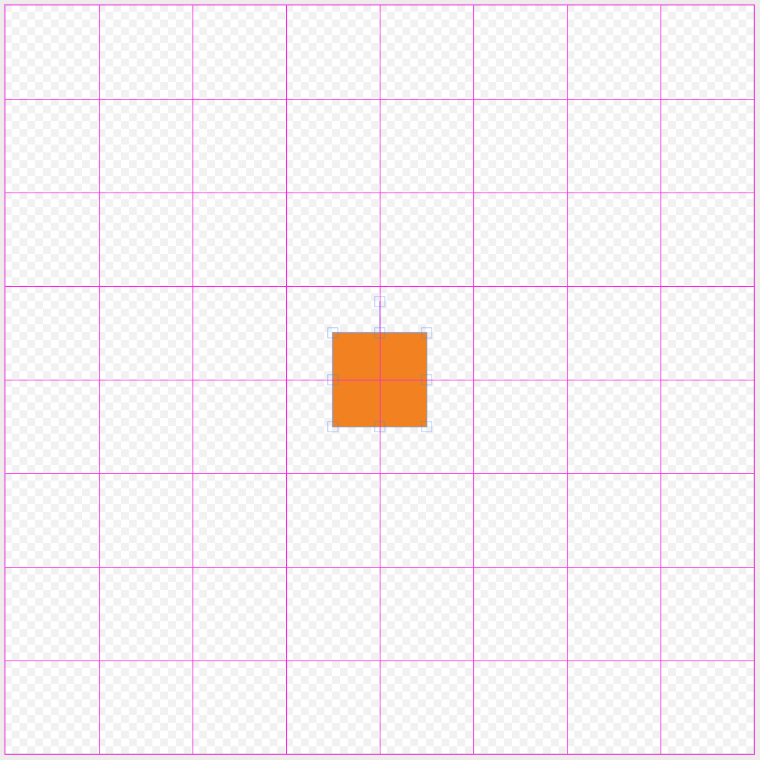
7. To manipulate the square to enlarge it, <mark style="color:blue;">**grab**</mark> the square on one of the corners of the square and <mark style="color:blue;">**drag**</mark> it until the square fills the height and width of 4 grid spaces.&#x20;

   * Note: If the snap to grid is turned on (default) then the shape will automatically fill the grid space.

   <div><figure><img src="/files/FPU88afdfx0gg8zGYTk0" alt=""><figcaption></figcaption></figure> <figure><img src="/files/wKLw9lrob5sthLOmuy7m" alt=""><figcaption></figcaption></figure></div>
8. Click on the <mark style="color:blue;">**quarter circle shape**</mark> (<img src="/files/02NU8lnpowCqd1KGYr0O" alt="" data-size="line">) from the central control panel.&#x20;

   <figure><img src="/files/A2b98aIHRDT1E3LcXf35" alt=""><figcaption></figcaption></figure>
9. Click on the <mark style="color:blue;">**Link button**</mark> for a different fabric link (so that there are now 2 different fabrics being used). In this example, I am using Fabric Link B.

   <figure><img src="/files/Z9QWuvd6N7ggcmy72Grt" alt=""><figcaption><p>Circle now using Fabric Link B</p></figcaption></figure>
10. <mark style="color:blue;">**Move**</mark> the quarter circle piece into the bottom right corner of the square.

    <div><figure><img src="/files/pdoWKvZkuANRGQTopont" alt=""><figcaption></figcaption></figure> <figure><img src="/files/UnyncUQ4kbFwyFHPHyVv" alt=""><figcaption></figcaption></figure></div>
11. &#x20;To manipulate the quarter circle to enlarge it, <mark style="color:blue;">**grab**</mark> the square on the top left corner of the bounding box around the quarter circle and <mark style="color:blue;">**drag**</mark> it until the edge of the quarter circle fills the height and width of 3 grid spaces.

    <div><figure><img src="/files/k1q8lLVQ8D16rOoAMohj" alt=""><figcaption></figcaption></figure> <figure><img src="/files/BTWv6PeWamP4cCIolebF" alt=""><figcaption><p>1 x Drunkard's Path block unit</p></figcaption></figure></div>
12. <mark style="color:blue;">**Clone, rotate**</mark> and <mark style="color:blue;">**move**</mark> 3 more Drunkard's Path block units to complete the quilt block. If you'd like, you can add and use additional Fabric Links.

    <div align="left"><figure><img src="/files/Tr7v4QxqOuqS4PKQUwcF" alt="" width="375"><figcaption><p>Quilt block with 4 Drunkard's Path block units</p></figcaption></figure></div>

&#x20;   &#x20;

***

## <mark style="color:blue;">Sewing Construction Diagrams</mark>

**Please note:**

* Templates are not included in PreQuilt (at this time). You will need to create your own or buy templates to cut the curves.
* Cutting diagrams on PreQuilt are set as squares that are then trimmed into the convex and concave curves. Use your expertise to stagger templates for more efficient fabric usage.&#x20;
* Version 2.0 of Fabric Calculations will include templates and staggered cutting diagrams.

### <mark style="color:blue;">1 at a Time - Traditional Drunkard's Path</mark>

<figure><img src="/files/Bc7KOJCeqOpYRMk9ZNMU" alt=""><figcaption></figcaption></figure>

<figure><img src="/files/U8t1tWax0bgs1ICt92rj" alt=""><figcaption></figcaption></figure>

{% file src="/files/BAV0WZCCRd4Ckh0bA2Z1" %}