# Flying Geese

<figure><img src="/files/LMurMjGk9GCGBF3Y0Lae" alt=""><figcaption><p>Flying Geese Block Unit</p></figcaption></figure>

## <mark style="color:blue;">Flying Geese Block Unit in PreQuilt</mark>

The **Flying Geese** block unit is composed of a manipulated equilateral triangle and two half square triangles.&#x20;

And since the idea behind this series is to build a block unit (not an entire block of just a flying geese), I'm going to create a 12" finished block that has flying geese block units in it (like for example, the **Sawtooth Star** quilt block).

***

### YouTube Video

*Coming soon...*

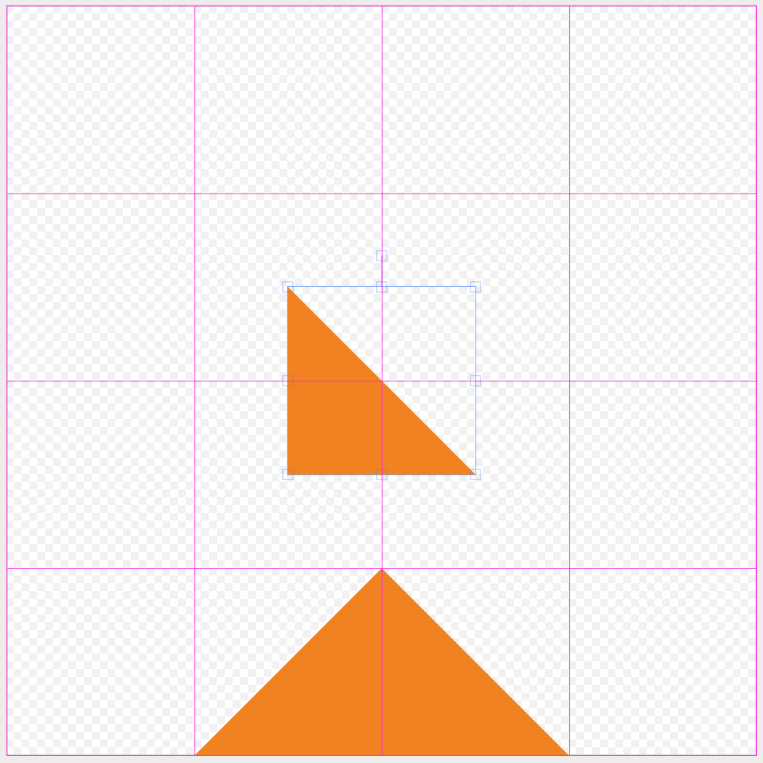
***

### Help Guide

1. Click on the <mark style="color:blue;">**BLOCKS tab**</mark> on the left side control panel.

   <div align="left"><figure><img src="/files/68Sy8IGIv0pf3slIgZAs" alt=""><figcaption></figcaption></figure></div>
2. Click on the <mark style="color:blue;">**Make Custom Block**</mark> button.

   <div align="left"><figure><img src="/files/m996ukpqAnSaJrChXBS5" alt=""><figcaption></figcaption></figure></div>
3. The **Block Editor panel** will slide out and overtake your screen. My block is set to 12" x 12" finished, but it doesn't matter, the next steps will work for all sized blocks.
4. Set your grid guidelines by changing the number for the horizontal and vertical units.

   * Since I'm going to be creating the **Sawtooth Star** quilt block, I'll set my gridlines to 4 horizontal and 4 vertical units.

   <div align="left"><figure><img src="/files/dZwDHVP5LLO7JixxuZoe" alt=""><figcaption></figcaption></figure></div>

   <figure><img src="/files/SicafsOuZhVbdQ2HeTwn" alt=""><figcaption></figcaption></figure>
5. Click on the <mark style="color:blue;">**isosceles triangle shape**</mark> (<img src="/files/Whpe3suPrbTmciB9YM3b" alt="" data-size="line">) from the central control panel.
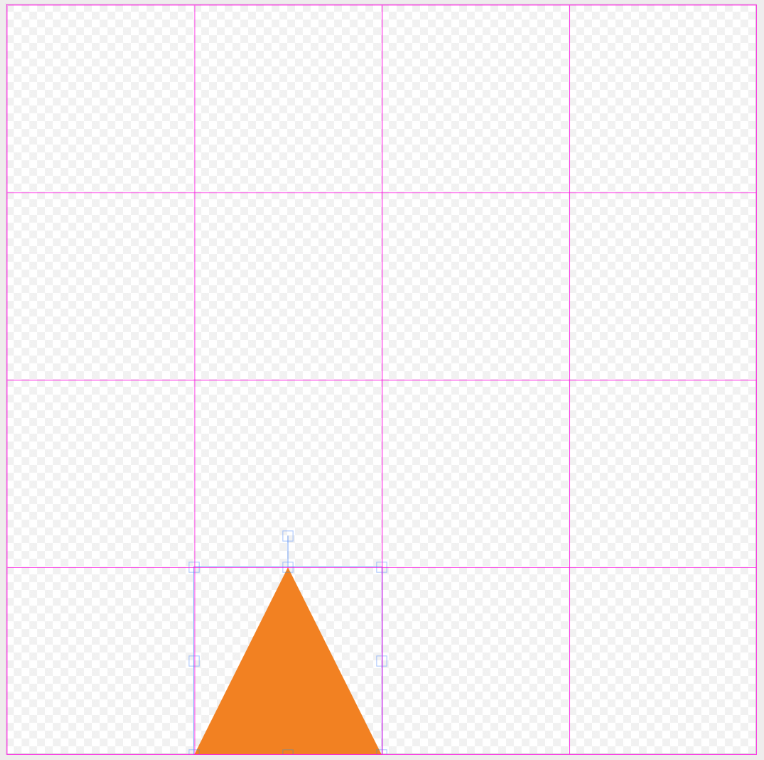
6. One isosceles triangle will be added to the block space. <mark style="color:blue;">**Move**</mark> it into the correct position by clicking on the shape on the block space and moving it to where it belongs.

   <div><figure><img src="/files/U0xosffafSDmpF4JJuVy" alt="" width="563"><figcaption><p>Isosceles triangle shape added to the quilt block space</p></figcaption></figure> <figure><img src="/files/13CWyYyhf1jyq8IMw0Gm" alt="" width="563"><figcaption><p>Isosceles triangle shape moved to create Flying Geese</p></figcaption></figure></div>
7. Now that the isosceles triangle is in place, we can now stretch it into the shape of a quarter square triangle. With the triangle selected, grab the square on the right side of the isosceles triangle and drag it until the triangle fills the width of two grid spaces. If the snap to grid is turned on (default) then the shape will automatically fill the grid space.

   * Keep in mind this is only one part of the Flying Geese, the two half square triangle pieces on either side are not there yet (empty).

   <div><figure><img src="/files/fCdj2JLuZoP5TtjXku9G" alt=""><figcaption></figcaption></figure> <figure><img src="/files/Ux4gI0d7KbaYVUHstgAA" alt=""><figcaption></figcaption></figure></div>
8. Now we can add the rest of the block unit. Click on the <mark style="color:blue;">**half square triangle shape**</mark> (<img src="/files/EEePm3rhCekaER6O6O2g" alt="" data-size="line">) from the central control panel.

   <figure><img src="/files/YqqFz14DIFdZpnn8J4Zz" alt=""><figcaption></figcaption></figure>
9. Click on the <mark style="color:blue;">**Rotate button**</mark> (![](/files/dAVu3YUaYXrBpxkyHrgW)) on the central control panel so that it is in the correct orientation. You will need to click on the Rotate button several times to get it to be upside down.

   <div><figure><img src="/files/zLI8D0cR5mOvi9NqN3AO" alt=""><figcaption></figcaption></figure> <figure><img src="/files/eYG1ZtMDcZwzSS9ldKFn" alt=""><figcaption></figcaption></figure></div>
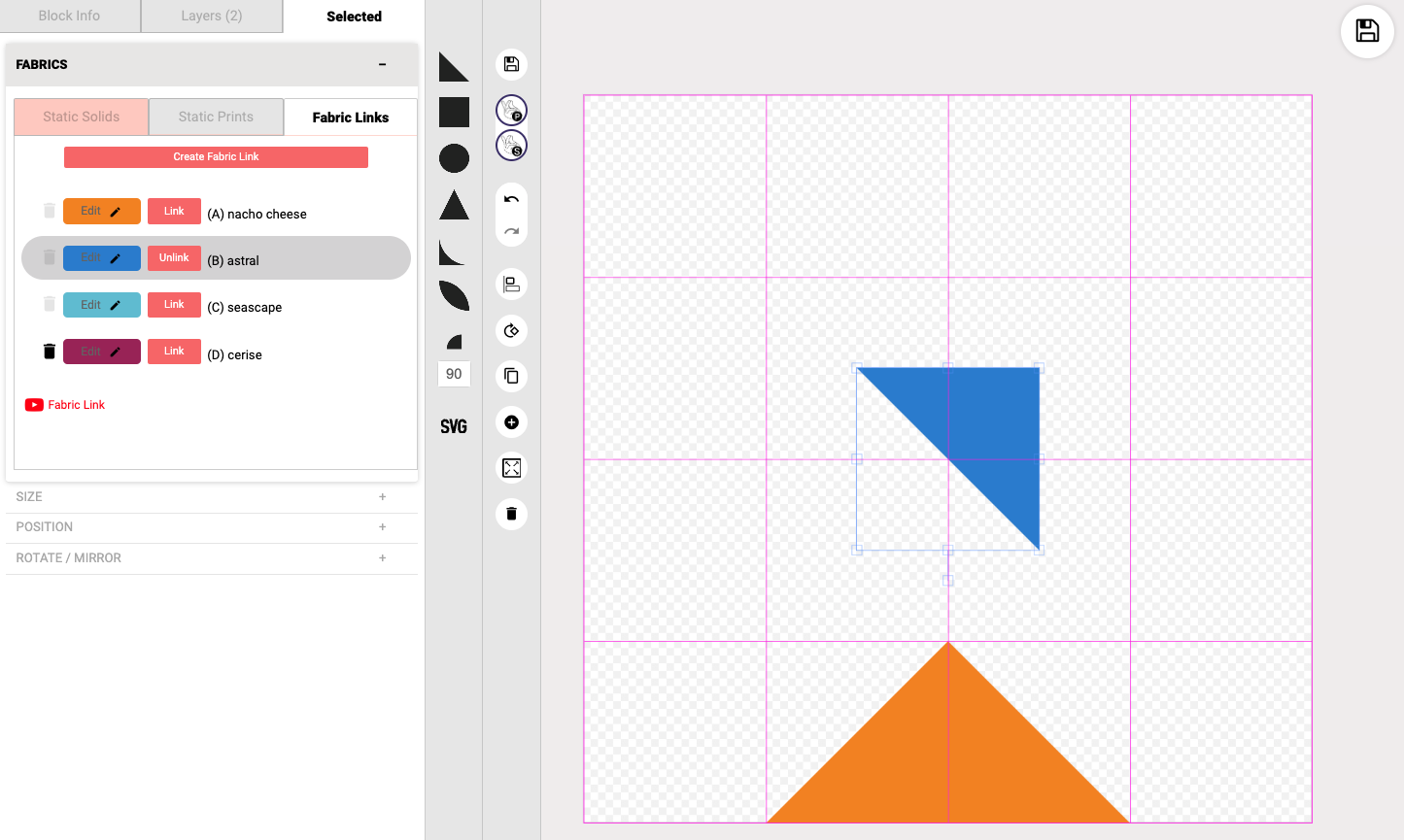
10. lick on the <mark style="color:blue;">**Link button**</mark> for a different fabric link (so that the new QST block piece is now linked to a different Fabric Link). In this example, I've linked them to Fabric B.

    <figure><img src="/files/dxTx0yhleYJijKoKm13T" alt=""><figcaption></figcaption></figure>
11. <mark style="color:blue;">**Move**</mark> the new half square triangle piece so it is to the right of the quarter square triangle. It should snap into place.

    <div align="left"><figure><img src="/files/0lsotrI856BsMpy3Bj7a" alt="" width="375"><figcaption></figcaption></figure></div>
12. <mark style="color:blue;">**Click**</mark> on the half square triangle shape to select it and then click on the <mark style="color:blue;">**Clone button**</mark> (![](/files/Uhph6iWWhRGBUn4aG6gV)) on the central control panel.

    <div><figure><img src="/files/0lsotrI856BsMpy3Bj7a" alt=""><figcaption></figcaption></figure> <figure><img src="/files/PtUArCF8RTfqCkXxiN37" alt=""><figcaption></figcaption></figure></div>
13. Click on the <mark style="color:blue;">**Rotate button**</mark> (![](/files/dAVu3YUaYXrBpxkyHrgW)) on the central control panel so that the new HST is in the correct orientation. And move it into the position on the other side of the quarter square triangle piece.

    <div><figure><img src="/files/PtUArCF8RTfqCkXxiN37" alt=""><figcaption></figcaption></figure> <figure><img src="/files/lCJoU74MyzrZoSiEloh6" alt=""><figcaption></figcaption></figure></div>
14. <mark style="color:blue;">**Move**</mark> the HST piece so that it is to the left of the orange quarter square triangle. Now you have a completed Flying Geese block unit, which is also the bottom points of a Sawtooth Star.&#x20;

    <div align="left"><figure><img src="/files/sr6iFlWAbUESMBOtDDsR" alt=""><figcaption><p>1 x Flying Geese block unit</p></figcaption></figure> <figure><img src="/files/PTo4TCz9pXxaZBhPzsbI" alt=""><figcaption><p>Complete Sawtooth Star with 4 Flying Geese block units</p></figcaption></figure></div>

&#x20;   &#x20;

***

## <mark style="color:blue;">Sewing Construction Diagrams</mark>

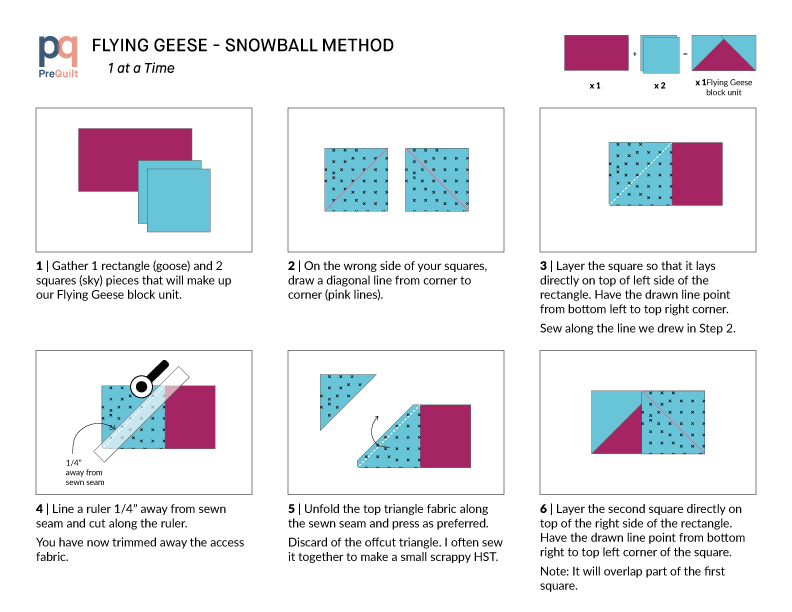
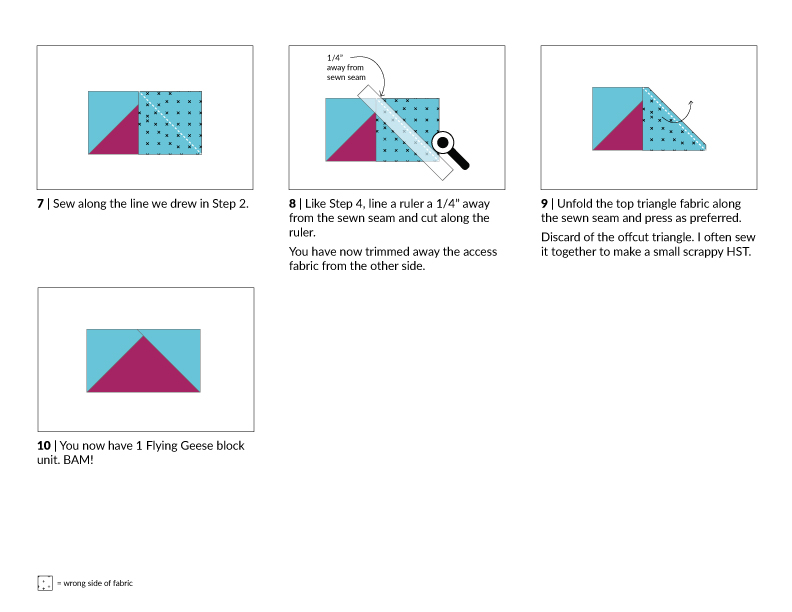
### <mark style="color:blue;">1 at a Time - Snowball Method</mark>

<figure><img src="/files/QRVjEZGfXaepZ9BXzCNG" alt=""><figcaption></figcaption></figure>

<figure><img src="/files/eK7n1JgSiEb1RkSlgL0n" alt=""><figcaption></figcaption></figure>

{% file src="/files/Y2TQdRmq1z4HKYADeE0J" %}

### <mark style="color:blue;">1 at a Time - Subcut Method</mark>

<figure><img src="/files/k2FCbEaSKAneBP9gsRAb" alt=""><figcaption></figcaption></figure>

<figure><img src="/files/0ngzd0DGKjSJABnbvjXj" alt=""><figcaption></figcaption></figure>

{% file src="/files/e8YV26ukkWz8G4NDR9ql" %}

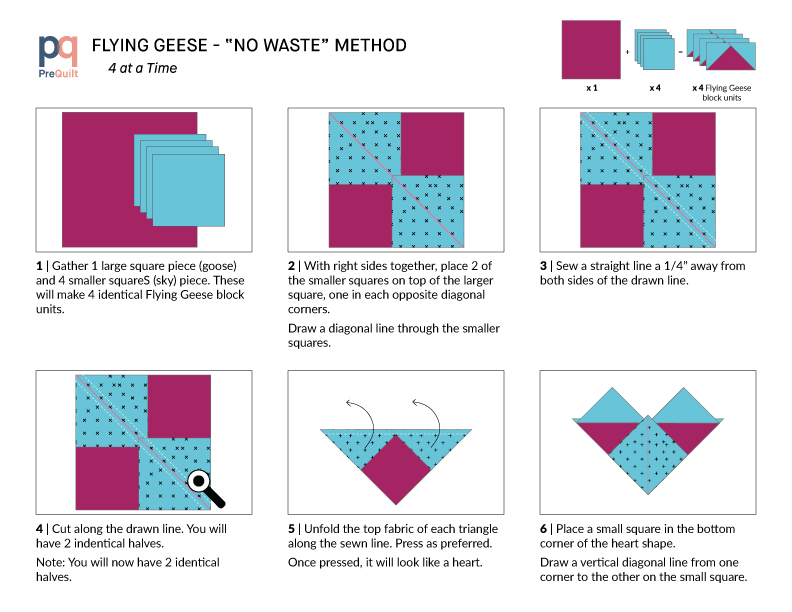
### <mark style="color:blue;">4 at a Time - No Waste Method</mark>

<figure><img src="/files/QIM664IfgiWJB07WXcYR" alt=""><figcaption></figcaption></figure>

<figure><img src="/files/Grqj1HFggC3DMXjxsTGo" alt=""><figcaption></figcaption></figure>

{% file src="/files/AujGf0h3bm17DQP31Rhs" %}


---

# Agent Instructions: Querying This Documentation

If you need additional information that is not directly available in this page, you can query the documentation dynamically by asking a question.

Perform an HTTP GET request on the current page URL with the `ask` query parameter:

```
GET https://help.prequilt.com/prequilt-101/build-a-block-unit-for-the-fabric-calculator/triangular-units/flying-geese.md?ask=<question>
```

The question should be specific, self-contained, and written in natural language.
The response will contain a direct answer to the question and relevant excerpts and sources from the documentation.

Use this mechanism when the answer is not explicitly present in the current page, you need clarification or additional context, or you want to retrieve related documentation sections.