# 05 Insert Panel

## <mark style="color:blue;">Insert Panel</mark>

Now that we've created a block with the perfect dimensions for our panel, we can now add it to the quilt!

1. Right click on our newly merged block and select <mark style="color:blue;">**Create Block 32 x 40**</mark> option.

   <div align="left"><figure><img src="https://667278489-files.gitbook.io/~/files/v0/b/gitbook-x-prod.appspot.com/o/spaces%2FPUFswdysHBJDPIJC9xe0%2Fuploads%2FDfU39Io5Zqg5yyzuM6Kq%2F01%20create%20block.png?alt=media&#x26;token=7a2ce1e8-5396-464d-bc52-ba678a8a46d1" alt="" width="539"><figcaption></figcaption></figure></div>
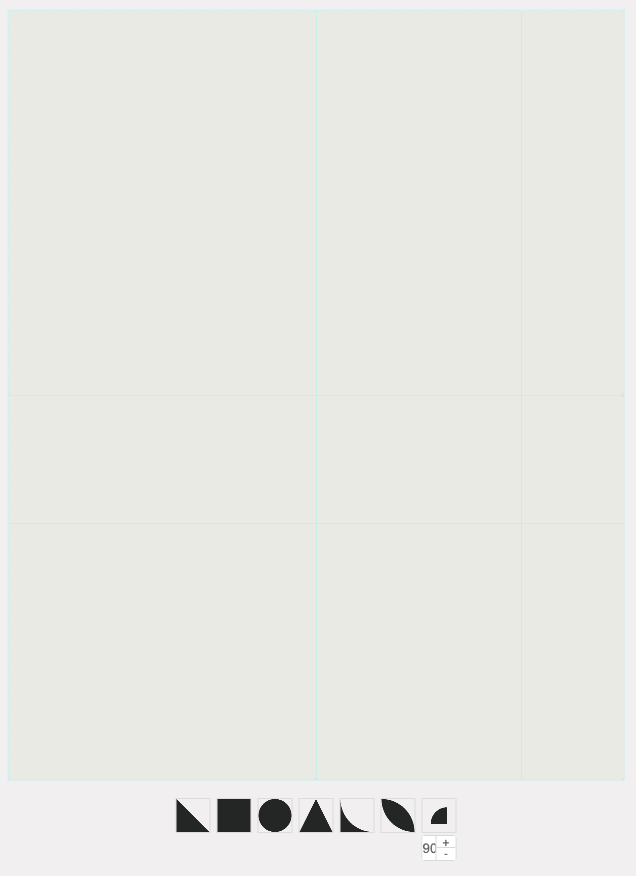
2. The Block Editor window will open automatically. Click on the <mark style="color:blue;">**square shape**</mark> along the bottom of the block space.&#x20;

   <div align="left"><figure><img src="https://667278489-files.gitbook.io/~/files/v0/b/gitbook-x-prod.appspot.com/o/spaces%2FPUFswdysHBJDPIJC9xe0%2Fuploads%2Fv7kglWLbwTr4vGXKFdq3%2F02%20add%20square.png?alt=media&#x26;token=93b20107-1e5b-4485-a389-27fc6632e7a6" alt=""><figcaption></figcaption></figure></div>
3. A grey square will be added to the block.

   <div align="left"><figure><img src="https://667278489-files.gitbook.io/~/files/v0/b/gitbook-x-prod.appspot.com/o/spaces%2FPUFswdysHBJDPIJC9xe0%2Fuploads%2FBRCMBFJCMYbx0cfKjAeT%2F03%20grey%20square.png?alt=media&#x26;token=4219f45c-ed42-4c5e-b548-06028062e734" alt="" width="476"><figcaption></figcaption></figure></div>
4. Click on the <mark style="color:blue;">**Scale to Fit**</mark> button (<img src="https://667278489-files.gitbook.io/~/files/v0/b/gitbook-x-prod.appspot.com/o/spaces%2FPUFswdysHBJDPIJC9xe0%2Fuploads%2FZ17SuqzxqE4qFNr5e4jw%2F04a%20scale%20button.png?alt=media&#x26;token=e2971bb7-0508-4053-aa89-e13c010685ae" alt="" data-size="line">) on the central vertical control panel.

   <div align="left"><figure><img src="https://667278489-files.gitbook.io/~/files/v0/b/gitbook-x-prod.appspot.com/o/spaces%2FPUFswdysHBJDPIJC9xe0%2Fuploads%2FLjDtgzbPWDhgfTfXeJCf%2F04b%20scale%20to%20fit.png?alt=media&#x26;token=b440a8d8-f59f-434a-b391-5ecbc63e8b15" alt=""><figcaption></figcaption></figure></div>
5. The grey square now fills the entire 32 x 40 block space.

   <div align="left"><figure><img src="https://667278489-files.gitbook.io/~/files/v0/b/gitbook-x-prod.appspot.com/o/spaces%2FPUFswdysHBJDPIJC9xe0%2Fuploads%2FHRibcQzIKXTpFTSIyKqN%2F05%20full%20grey.png?alt=media&#x26;token=7bdc44e5-3b7c-49c5-ad06-030638d22ac5" alt="" width="477"><figcaption></figcaption></figure></div>
6. On the left side control panel, click on the <mark style="color:blue;">**Static Prints tab**</mark>.

   <div align="left"><figure><img src="https://667278489-files.gitbook.io/~/files/v0/b/gitbook-x-prod.appspot.com/o/spaces%2FPUFswdysHBJDPIJC9xe0%2Fuploads%2FijAiHVUgFQYBOljdwFHs%2F06%20static%20prints%20tab.png?alt=media&#x26;token=d66c91ff-7457-44ff-82c8-a9541c27e495" alt=""><figcaption></figcaption></figure></div>
7. Click the <mark style="color:blue;">**Select**</mark> button for our panel's fabric swatch.

   <div align="left"><figure><img src="https://667278489-files.gitbook.io/~/files/v0/b/gitbook-x-prod.appspot.com/o/spaces%2FPUFswdysHBJDPIJC9xe0%2Fuploads%2FByNSqbC5tXShkMOqyOoL%2F07%20select.png?alt=media&#x26;token=3dbb4962-79bf-4dd4-abb5-4ea2412dd2ea" alt=""><figcaption></figcaption></figure></div>
8. The panel's fabric swatch is now placed into the block.&#x20;

   <div align="left"><figure><img src="https://667278489-files.gitbook.io/~/files/v0/b/gitbook-x-prod.appspot.com/o/spaces%2FPUFswdysHBJDPIJC9xe0%2Fuploads%2FGGxBgIS6j1XzJUZ3sLt2%2F08%20added%20panel.png?alt=media&#x26;token=913218ee-4733-4f71-99d4-954d7a9814cd" alt="" width="515"><figcaption></figcaption></figure></div>
9. If you need to move the panel at all, you can use the control panel to shift the image from the top or the left side.

   <div align="left"><figure><img src="https://667278489-files.gitbook.io/~/files/v0/b/gitbook-x-prod.appspot.com/o/spaces%2FPUFswdysHBJDPIJC9xe0%2Fuploads%2FShfVCgs4GqvgeQhSxMfa%2F09%20control%20panel.png?alt=media&#x26;token=8171c797-6b56-4999-8cbf-1c99bdfe7829" alt=""><figcaption></figcaption></figure></div>
10. Click on the <mark style="color:blue;">**Save**</mark> button (<img src="https://667278489-files.gitbook.io/~/files/v0/b/gitbook-x-prod.appspot.com/o/spaces%2FPUFswdysHBJDPIJC9xe0%2Fuploads%2FpZIX95Ag7gfN01wKlaD7%2F10a%20save.png?alt=media&#x26;token=3b76720a-6b10-4c7c-9c5d-6191de6ca53f" alt="" data-size="line">) in the top right corner of the Block Editor window. Select <mark style="color:blue;">**Save to Quilt**</mark>.

    <div align="left"><figure><img src="https://667278489-files.gitbook.io/~/files/v0/b/gitbook-x-prod.appspot.com/o/spaces%2FPUFswdysHBJDPIJC9xe0%2Fuploads%2F6AqEJtWiUCIdQi1m8O8y%2F10b%20save.png?alt=media&#x26;token=a6ab0433-4dfd-40a7-8ae0-2717d8901483" alt=""><figcaption></figcaption></figure></div>
11. You will now see the panel has been added to our merged block.

    <div align="left"><figure><img src="https://667278489-files.gitbook.io/~/files/v0/b/gitbook-x-prod.appspot.com/o/spaces%2FPUFswdysHBJDPIJC9xe0%2Fuploads%2FMocLcAMBJUxRDhNszDXY%2F11%20panel.png?alt=media&#x26;token=d6a175f5-bce5-428d-9da3-18445d043b1f" alt="" width="548"><figcaption></figcaption></figure></div>